
Getting started with the Movement Lab app
A short, step-by-step guide to setting up your account, signing in, and putting the app on your phone's home screen.
Phone screens are simplified and may look slightly different on your phone.
1 Before you start: use the right browser
The app runs in your phone's web browser. Which browser matters, especially on an iPhone. It takes ten seconds to get right, and it saves a lot of fiddling later.
On an iPhone
- Use Safari (the blue compass icon) or Chrome. Edge, Firefox and Brave work too. For reminders, Safari is the surest.
- If you tap the link inside Gmail, Outlook or another email app, it may open in that app's own little browser. Instead, press and hold the link.
- Choose Open in Safari (or Open in Chrome) from the menu that pops up.
On an Android phone
Use Chrome (best) or Samsung Internet. Either is fine for signing in.
Why does the browser matter? A little browser inside another app (Gmail, Outlook, Instagram) can't add the app to your home screen. If you end up in one, the app shows a Copy link button. Copy it, then paste it into Safari or Chrome.
2 Setting up your account the first time
Keegan will email you an invite link. You only use it once, to choose your password. There are no other details to fill in.
- Open the invite email and open the link in Safari or Chrome. See page 2.
- You'll see Set up your account. Type your email into Your email.
- Make up a password and type it into Choose a password. It needs at least 8 characters.
- Tap Create my account.
Pick something you'll remember. If you do forget it later, that's fine. Pages 6 and 7 show two easy ways back in.
Your first visit
- The app first shows Before you start. It explains what information is kept and why. Read it, tick the box to agree, and continue. Extras like the Daily scan and progress photos ask the first time you open them.
- A quick tour pops up. Tap Next to look around, or Skip the tour. You can replay it later from My Journey.
- Now add the app to your home screen (page 8), so it's one tap away next time.
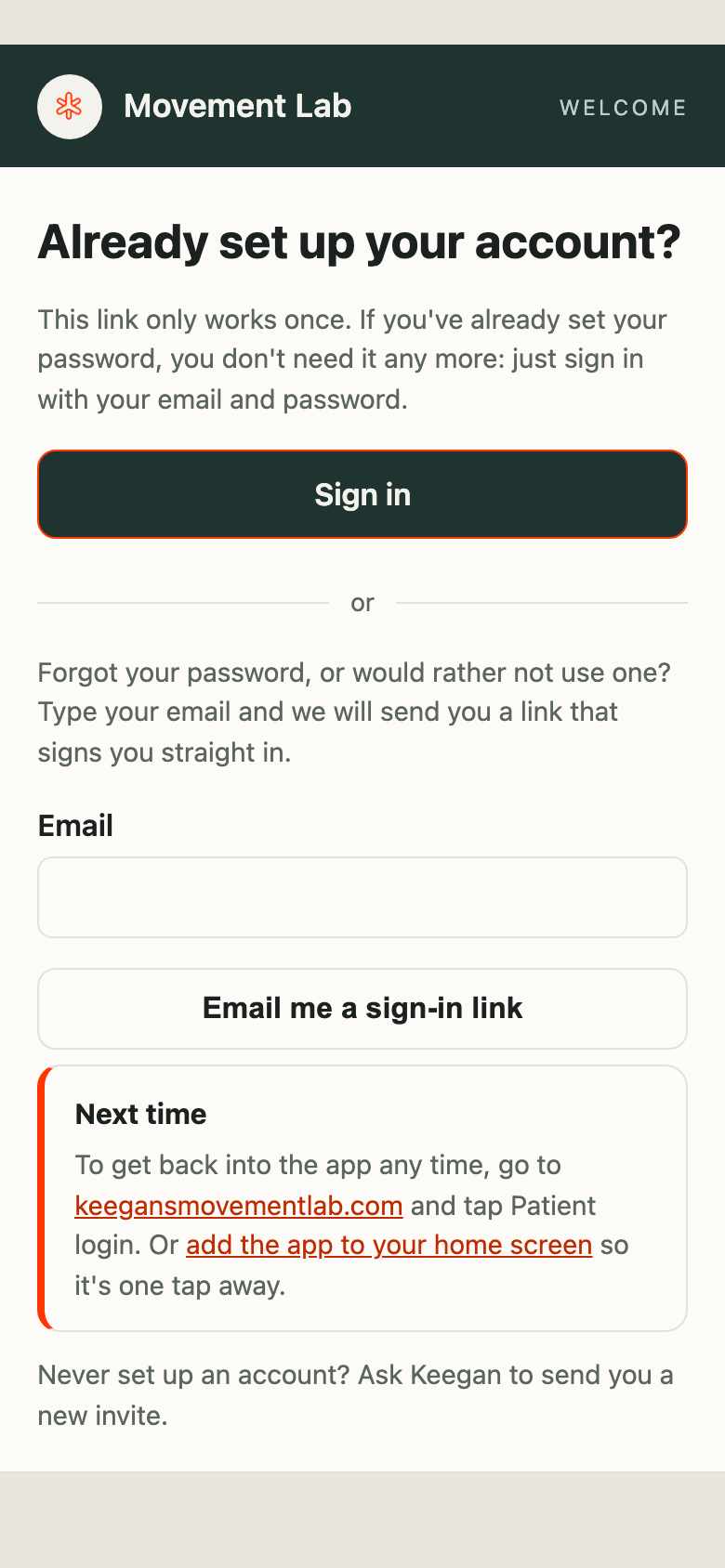
Tapped the invite link again later? It only works once, so you'll see Already set up your account? That's fine. Tap Sign in and use your email and password.
Never set up an account at all? Ask Keegan to send you a new invite.
3 Signing in
Once your account is set up, this is how you get back in. If you've added the app to your home screen, just tap the Movement Lab icon.
- Go to app.keegansmovementlab.com, or tap the icon on your home screen.
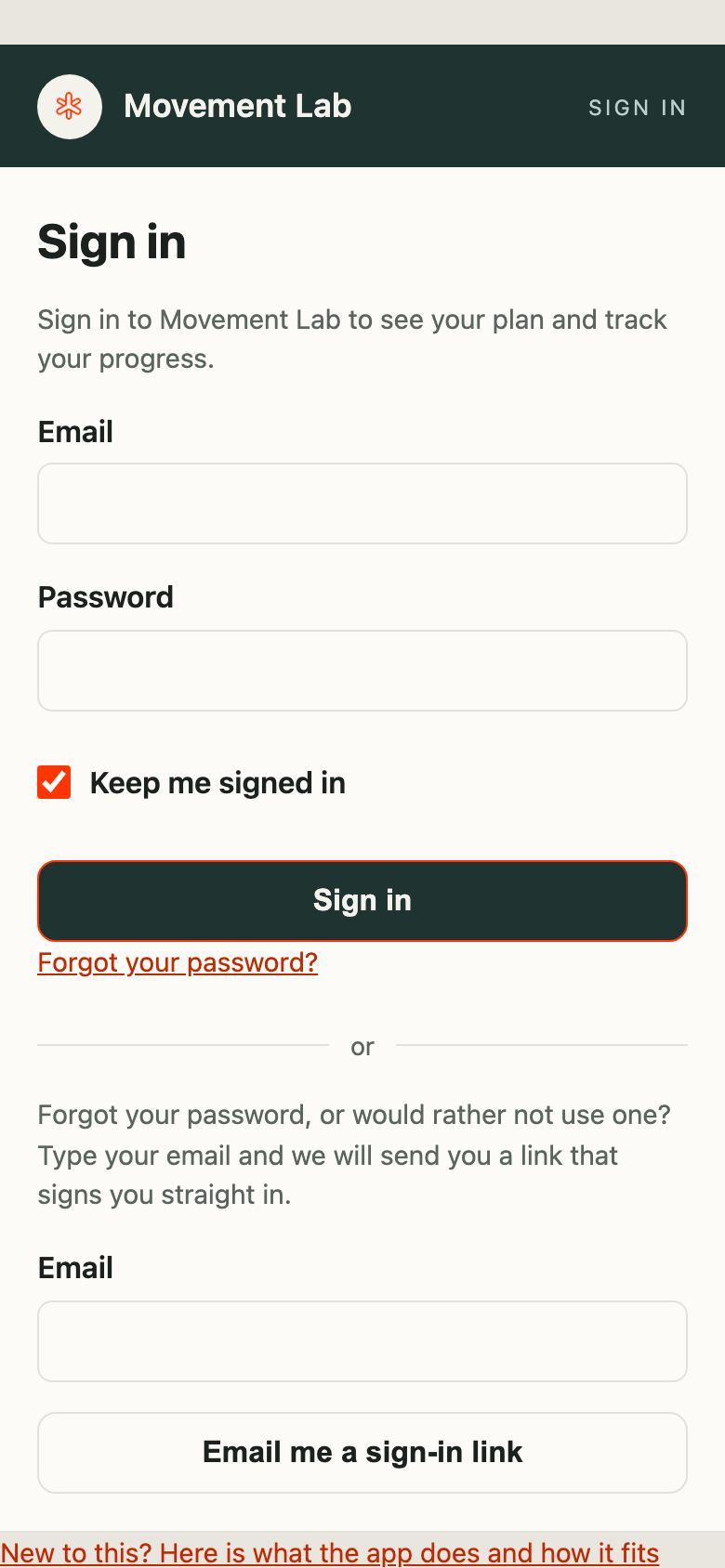
- Type your email into Email.
- Type your password into Password.
- Leave Keep me signed in ticked. Your phone will remember you for about a month.
- Tap Sign in.
On someone else's phone or a shared computer? Untick Keep me signed in. You'll be signed out when the browser is closed.
You're in. You land on Your rehab, with the exercises Keegan has set for you.
The bar along the bottom takes you to Rehab, Daily scan, Plan, Habits and My Journey.
See a box about adding Movement Lab to your home screen? Tap How to install, or follow section 6.
Another way in: go to keegansmovementlab.com and tap Patient login.
4 Sign in without a password
Can't remember your password, or would rather not bother with one? The app can email you a link that signs you straight in.
- On the Sign in screen, scroll down past the word or.
- Type your email into the Email box there.
- Tap Email me a sign-in link.
- Check your inbox (and your spam folder). Open the email from Movement Lab and tap the link. Open it in Safari or Chrome, the same as on page 2.
Good to know. The link works once and lasts 15 minutes. If it has expired, just ask for another one. For privacy, the app shows the same message whether or not it recognises the email, so double-check you typed the address Keegan has for you.
5 Forgot your password
You can choose a new password yourself, any time. You don't need to contact Keegan.
- On the Sign in screen, tap Forgot your password? under the Sign in button.
- Type your email into Email and tap Send reset link.
- Open the email called Reset your Movement Lab password. Open the link in Safari (iPhone) or Chrome (Android).
- On Set a new password, type a new password (at least 8 characters) and tap Set new password.
The reset link lasts 24 hours and works once. If it says the link is no longer valid, ask for a new one from the Sign in screen, or use Email me a sign-in link instead.
6 Add the app to your home screen
This gives you a Movement Lab icon you can tap any time, just like a normal app. On an iPhone it's also what lets appointment and habit reminders reach you. Worth doing.
iPhone (Safari shown here)
- Open app.keegansmovementlab.com in Safari. You can be signed in or not. Using another browser? See the note at the end of this section.
- Tap the Share button, a square with an arrow pointing up, at the bottom of the screen.
On newer iPhones, tap ⋯ (three dots) first, then Share.
iPhone, continued
- Scroll down the list and tap Add to Home Screen. Can't see it? Tap View More first.
- Leave Open as Web App switched on (green).
- Tap Add in the top corner. The Movement Lab icon appears on your home screen. From now on, open the app from that icon.
 Movement Lab
Using Chrome, Edge, Firefox or Brave on your iPhone? Tap that browser's Share button (in or beside the address bar, or inside the ⋯ menu), then Add to Home Screen, then Add. If reminders won't turn on afterwards, add the app from Safari instead.
The app has these steps too, at app.keegansmovementlab.com/install.
Android with Chrome (easiest)
- Open app.keegansmovementlab.com in Chrome.
- Tap the menu, the three dots ⋮ in the top corner.
- Tap Install app. On some phones it says Add to Home screen instead.
- Tap Install (or Add) to confirm. The Movement Lab icon appears on your home screen.
No Install option? Make sure you're in Chrome itself, not a browser inside another app. Close the tab, open Chrome, and type the address in.
Samsung Internet
- Tap the menu, the three lines ☰ at the bottom right.
- Tap Add page to.
- Tap Home screen, then Add.
If a privacy warning pops up, that's Samsung's browser, not Movement Lab. Using Chrome instead (page 10) avoids it.
On a computer (optional)
You can also use the app on a laptop. It's not needed, but some people like it.
- Chrome or Edge: click the small install icon at the right end of the address bar, then click Install.
- Safari on a Mac: choose File, then Add to Dock.
7 Still stuck? What the messages mean
Most problems have a quick fix. Here's what the app is telling you, and what to do next.
| If you see | What to do |
|---|---|
| "That email and password did not match." | Check the email for typos and try again. Or skip the password and tap Email me a sign-in link (page 6). |
| "Too many tries. Please wait a minute, then try again." | The app pauses after several attempts to keep your account safe. Wait a full minute, then have another go. |
| "Your new password is set. Please sign in." | Good news, the reset worked. Sign in with your email and the new password. |
| "Already set up your account?" or "This link is no longer valid." | That link has been used or has expired. Tap Sign in, or request a fresh link (pages 6 and 7). |
| "Choose a password of at least 8 characters." | Make your password a bit longer and tap the button again. |
| No email has arrived | Give it a few minutes and check your spam or junk folder. Make sure you used the email address Keegan has for you. |
| The link opened somewhere odd, inside Gmail or Outlook | Go back, press and hold the link, and choose Open in Safari or Open in Chrome. Or tap Copy link on the app's install page and paste it into your browser. |
Still not working? Contact Keegan.
Send a quick note saying what you tapped and what you saw. A photo of the screen helps a lot.
hello@keegansmovementlab.com